Menu management
Your menu should keep up.
A new product, a different price or the size that has just sold out. Change the menu information without rebuilding the design around it.
 City centre
sorted.
FROM A BLANK MENU
Build the structure
around your food.
Start with a template, name the categories and add the items. Keep product names, variants, descriptions, prices and images together.
01
Add the next thing
Create a category and add products to it. Include size or variant labels, optional descriptions and product images.
02
Remove what has changed
Remove a discontinued item or category. Hide a supported item temporarily, or mark a size sold out while keeping it on the menu.
03
Keep the design in place
Edit structured menu content. If you upload a finished image instead, its printed text stays part of that image until it is rebuilt as editable content.
PRICES WITH CONTEXT
Change one price.
Or a whole category.
Select the relevant venue, category, size or set of products. Review the exact old and new values before the change is applied.
Fictional menu. Nothing here changes a real screen.
A small change.
See the difference.
Choose a price or mark a size sold out.
Made fresh.
Worth a slice.
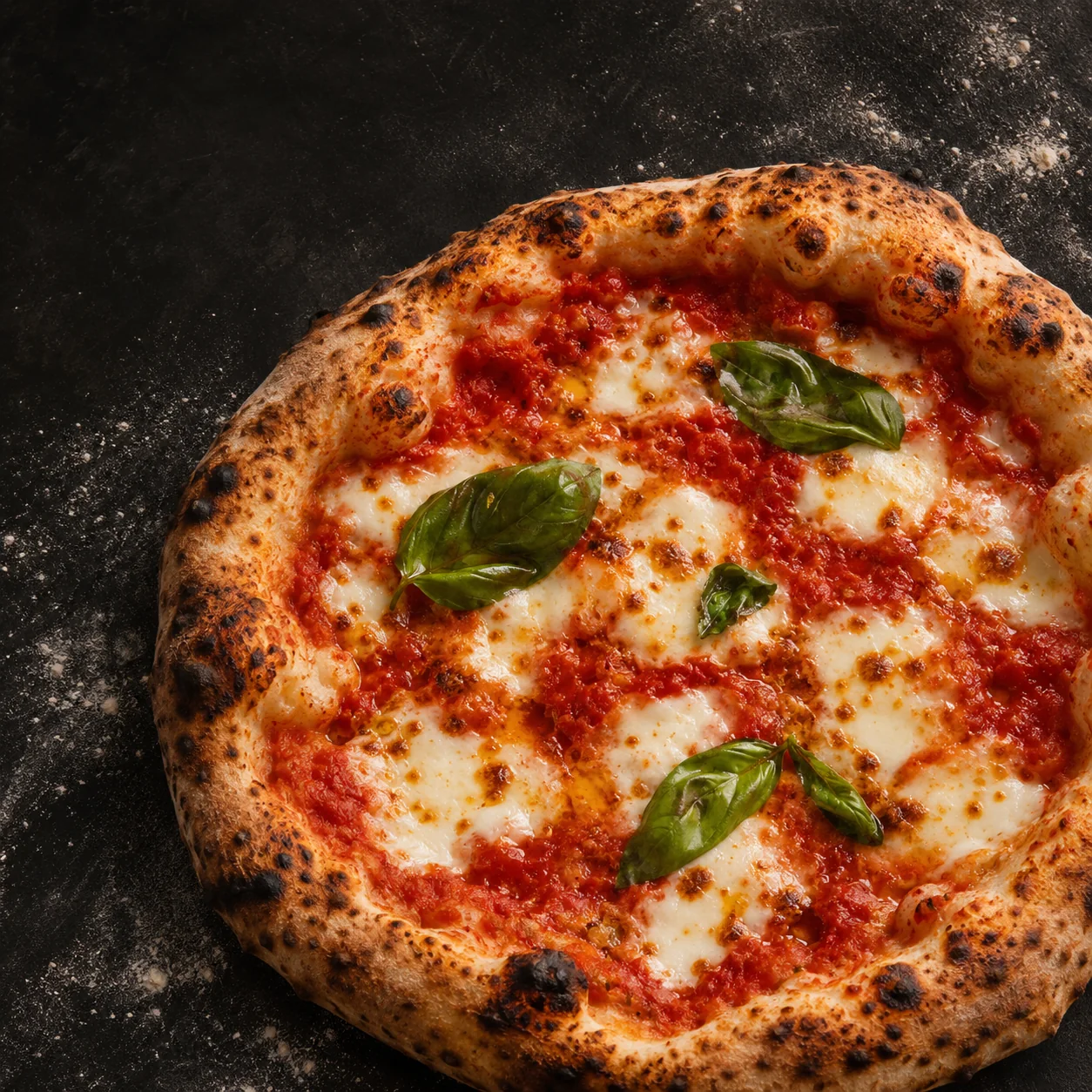
In Viewify, availability changes are separate from unfinished design edits. Connected players still need to receive an update.
PRICING SCHEDULES
Let the offer
follow the clock.
Schedule a one-off change for a future date or set recurring price windows. Preview the menu at the intended time and check overlapping rules.
What’s showing
at this time?
A weekday lunch offer runs from 12:00 until 16:00. Outside that window, the everyday menu takes its place.
Europe/London. This example changes only the preview.
Lunch has
its moment.
The scheduled lunch promotion is showing.
A clear fallback is part of the plan.
TONI’S PIZZERIA
Made for a real menu.
Toni’s three portrait boards show the full composition together. Essential items stay on their assigned board; separate promotion screens handle rotating content.
Our menu design work for Toni’s Pizzeria, using the latest supplied recordings. Play any board to see its movement. Example prices and availability are shown as captured.
EXPLORE THE DETAILS
The menu controls, in full.
From adding a category to reviewing a bulk change.
Templates and brand packs7 controls and capabilities
Set up the look once, then reuse it.
- 100 starter templates
- Start with ten layouts across ten food styles. These are configurable starting points, ready for your own content and branding.
- Reusable brand packs
- Save your logo, colours, heading font, body font and uploaded images together.
- Brand-pack editor
- Create or edit a pack without first creating a new menu.
- Apply to selected drafts
- Apply brand settings to the selected menu drafts, then review each layout before publishing.
- 100 colour references
- Explore the included palette references and inspect the resulting text contrast.
- Food and seasonal icons
- Use the included transparent illustration library in supported dark, white and gold variants.
- New-menu builder
- Choose a style and orientation, add categories and items, apply branding, then review and publish.
No matching features. Try a shorter phrase, or ask us about your workflow.
Show us the menu you need to manage.
Send your current menu, screen count and the changes your team makes most often. We’ll show how that workflow fits.