
Design Studio
Make it look like your business.
Work with the whole layout or an individual detail. Build a recognisable screen with editable content, your own media and motion that earns its place.

Build it in layers.
Select a layer to see its role. Then try a little movement on the promotional artwork.
Background selected: change the scene beneath your menu.
Illustrative controls. Your live screens are unaffected. Reduced-motion settings are respected.
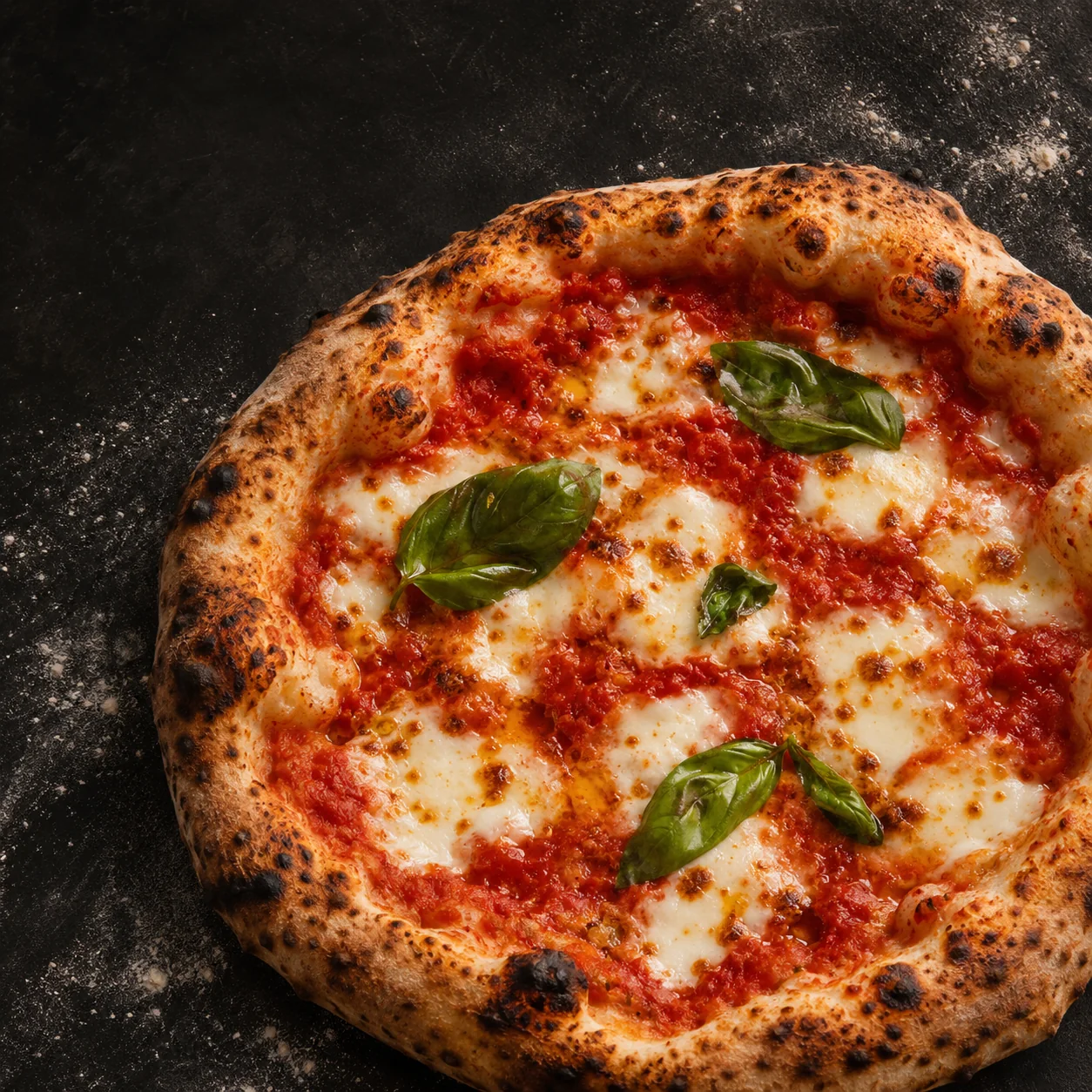
Three independently controlled layers.
Fictional menu and prices.
DIRECT DESIGN CONTROL
One canvas.
Control over the detail.
Select an element in the menu preview. Move it, resize it or open its controls. Work on a single image, a heading or a whole section.
01
Arrange with intent
Use the grid, snapping, numerical position controls and section resizing to build a deliberate layout.
02
Set the hierarchy
Choose fonts, weights, spacing and colours. Give categories their own artwork, surfaces, gradients and borders.
03
Keep the work reversible
Use draft saving, supported undo and redo, then review changes and affected screens before publishing.
PER-ELEMENT ANIMATION
Movement with a purpose.
Let the food float gently. Give a headline an entrance. Add steam or a scrolling promotion. Keep the essential menu still when customers need to read it.
Animation and motion9 controls and capabilities
Keep the menu readable while the right details move.
- Product entrances
- Choose no animation, fade, rise or pop for supported product elements.
- Category image motion
- Apply float, pulse, drift or reveal to category artwork.
- Visual motion presets
- Choose float, breathe, drift, rotate, reveal, sway, bob, orbit, zoom or wobble for a visual layer.
- Image carousels
- Set a sequence of images on a dedicated visual layer.
- Motion timing
- Adjust the duration of supported visual animations.
- Overlay entrances
- Use fade, zoom or directional slide entrances with adjustable timing.
- Steam effects
- Add a transparent steam visual, then move, size and rotate it into position.
- Whole-screen intensity
- Choose off, subtle or standard motion for supported whole-screen effects.
- Separate promotional rotation
- Rotate promotional media on the appropriate screen while keeping fixed menu boards complete.
No matching features. Try a shorter phrase, or ask us about your workflow.
LAYERED SCREEN DESIGN
Your background.
Your menu. Your top layer.
Use each layer for its own job. A background video can sit beneath editable menu content while a separate promotion bar carries the message.
Background, menu and top layers10 controls and capabilities
Change one part of the screen without flattening the whole design.
- Per-screen backgrounds
- Use a still image or supported video as the background for an individual screen.
- Background fit
- Fit the whole asset, fill the screen with cropping, or stretch where appropriate.
- Background adjustments
- Adjust visibility, brightness, colour intensity, contrast and blur.
- Menu and panel visibility
- Tune the menu layer and panel darkness so background media and text remain readable.
- Background textures
- Use supported texture, scale, opacity, vignette and texture-motion settings.
- Top-layer banners
- Add a message above the main content, positioned at an edge, corner or centre.
- Image and video overlays
- Place separate media on top of the design, with its own size, position and opacity.
- Promo bar
- Add a scrolling announcement with editable text, optional imagery and styling.
- Promo-bar layout
- Control its position, width, height, typography, colours and scrolling speed.
- Layer inspection
- Select the background, menu or on-top content to work on the intended part of the screen.
No matching features. Try a shorter phrase, or ask us about your workflow.
STUDIO CONTROLS
Small controls.
A much more finished screen.
The tools for the details that make a layout feel considered.
Canvas and layout12 controls and capabilities
Work on the actual menu composition, with controls for individual elements and whole sections.
- Direct canvas editing
- Select a product, heading, image, price or deal in the preview to open its controls.
- Move individual elements
- Drag items and visual layers to the position you want.
- Move whole sections
- Move a section with its contents, or reposition the section frame separately.
- Resize sections
- Choose whether resizing affects the frame alone or scales its contents too.
- Precise position and size
- Adjust horizontal and vertical position, width, height and scale numerically.
- Grid and snapping
- Use an alignment grid and selectable snap spacing to organise the composition.
- Zoom and focus
- Fit the canvas, zoom in, focus the design area or open a full-screen preview.
- Screen-by-screen control
- Switch between menu screens and review the three original boards together.
- Undo, redo and reset
- Undo or redo supported Studio edits and reset a selected element’s position.
- Draft autosave
- Supported inspector edits save to the draft. The published design changes through the publish review.
- Conflict-aware publication
- Review changed content and the screens affected before publishing. Recheck if the saved version changes.
- Safe areas and layout checks
- Adjust margins and reserved header or footer areas. Review the whole screen without hiding items to make it fit.
Text, headings and section styling10 controls and capabilities
Build a hierarchy that fits your brand and viewing distance.
- 300 font families
- Choose from 300 locally included font families. Selected fonts load with the menu.
- Heading and body fonts
- Use different fonts for headings and menu text within a reusable brand pack.
- Type size, weight and spacing
- Adjust text size, weight, alignment, colour and letter spacing where the selected element supports them.
- Editable category headings
- Change a heading or hide its text while keeping the food items in place.
- Category artwork
- Show, hide, replace, resize and rotate category artwork independently of product rows.
- Standalone text layers
- Add and edit text independently of menu items, with its own style and visibility.
- Section surfaces
- Choose a transparent, solid, linear-gradient or radial-gradient surface.
- Detailed gradients
- Adjust colours, opacity, angle and stops; category gradients also support radial positioning.
- Borders and corners
- Change section borders, thickness and corner rounding.
- Apply matching styles
- Apply selected category or section styling across the relevant menu screens without manually repeating it.
Your media library14 controls and capabilities
Bring the artwork in, then control how it appears.
- Image and video uploads
- Upload JPG, PNG, WebP, MP4 and WebM through the media library, up to 30 MB per file.
- Drop files into the library
- Use the upload control or drop supported files into the upload area.
- Search and filter media
- Search by image or file name and filter supplied media from your own uploads.
- Place media on the canvas
- Add an image from the library or drag it onto the design preview.
- Size and rotation
- Resize, position and rotate visual elements, retaining the source artwork.
- Transparent artwork
- Use prepared PNG, WebP or supported transparent video where appropriate.
- Image fit and proportions
- Keep proportions while resizing, show the whole image, fill and crop, or stretch deliberately.
- Drop shadows
- Control shadow colour, opacity, blur, strength and horizontal or vertical offset.
- Layer order and visibility
- Arrange visual elements above or below one another and hide layers when needed.
- Image opacity and corners
- Adjust opacity and corner rounding for a visual element.
- Flip artwork
- Flip supported images horizontally or vertically.
- Image labels
- Attach a heading and description to an image, with its own font, colour, background and alignment.
- Label position and tilt
- Set label size, position, padding, corner rounding and rotation.
- Pointers and label shadows
- Add a pointer and adjust its position and size, then set the label shadow.
No matching features. Try a shorter phrase, or ask us about your workflow.
TEMPLATES & BRANDING
Build once.
Start faster next time.
Use 100 configurable starter templates, 300 font families, palette references and reusable brand packs. Apply your saved look to selected drafts and check each layout before publication.
Templates and brand packs7 controls and capabilities
Set up the look once, then reuse it.
- 100 starter templates
- Start with ten layouts across ten food styles. These are configurable starting points, ready for your own content and branding.
- Reusable brand packs
- Save your logo, colours, heading font, body font and uploaded images together.
- Brand-pack editor
- Create or edit a pack without first creating a new menu.
- Apply to selected drafts
- Apply brand settings to the selected menu drafts, then review each layout before publishing.
- 100 colour references
- Explore the included palette references and inspect the resulting text contrast.
- Food and seasonal icons
- Use the included transparent illustration library in supported dark, white and gold variants.
- New-menu builder
- Choose a style and orientation, add categories and items, apply branding, then review and publish.
No matching features. Try a shorter phrase, or ask us about your workflow.
Bring the look you want to keep.
Your logo, menu artwork, photography and brand colours are the starting point. We can also scope design help where you need it.